AltoDocs
Docs · Engineering reports

Docs.
Engineering, explained.

Write engineering reports with text, calculations, drawings and spreadsheets. The tools below work inside Docs.

Join freeTry the Docs demo
Interactive demo

Your changes are temporary. You stay on this page.
Loading AltoDocs…
Inside Docs

Calculations, figures and writing in context.

MathCanvas inside Docs

Put the calculation beside the explanation.

MathCanvas is also available inside Docs. Write the engineering narrative around unit-aware variables, equations, tables, and reusable checks. When an input changes, dependent results change with it.

  • Inline and block equations
  • Automatic unit checking
  • Reactive dependencies
Interactive demo · Opens here · No sign-up
Explore standalone MathCanvas →
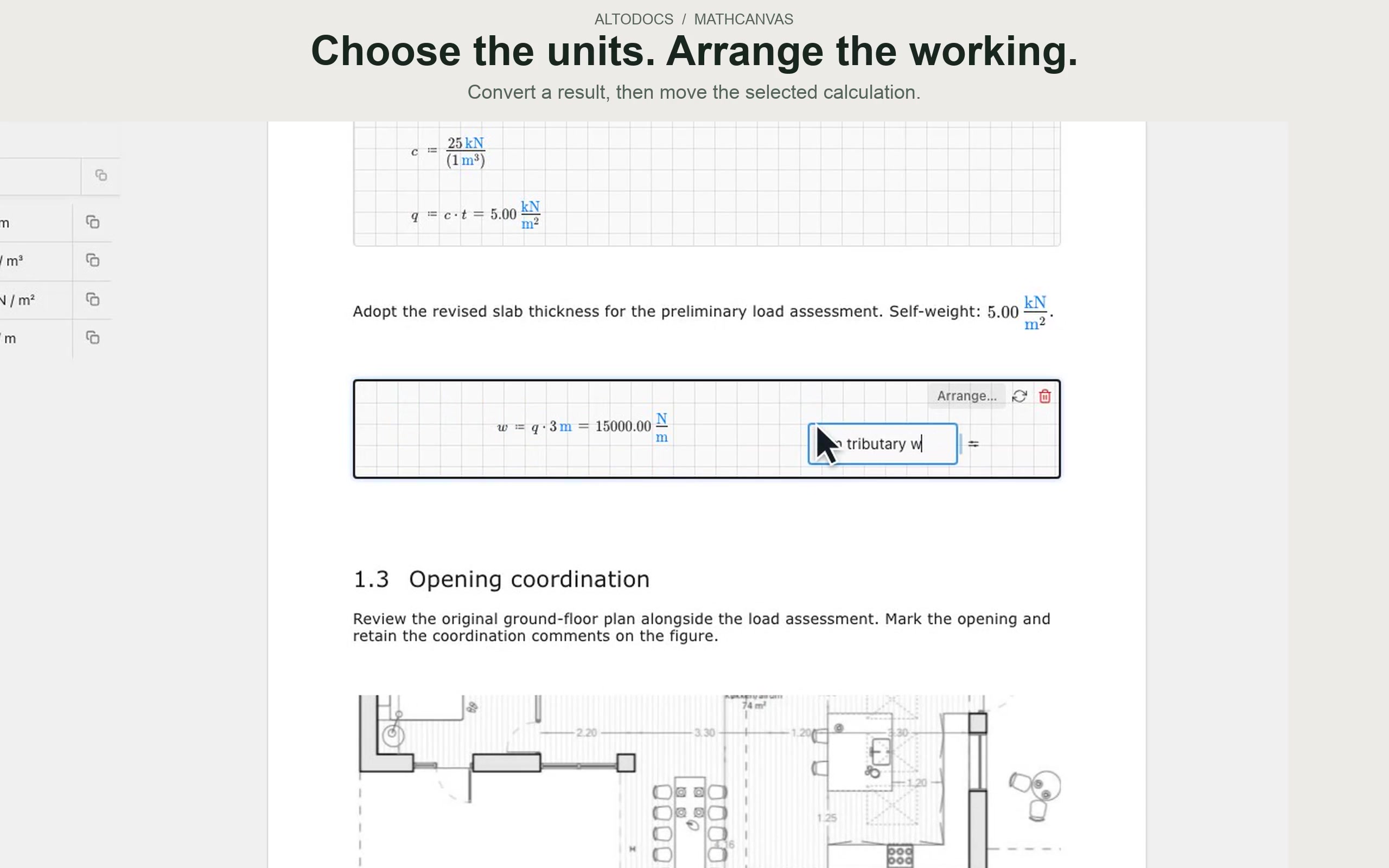
Calculate right in your document.

A MathCanvas report with a self-weight calculation, inline result, connected line-load calculation and open variable navigation
Write calculations with units. Change one input and see connected calculations and text update.
Calculation sheets

Keep familiar calculation sheets in context.

Open and edit engineering workbooks inside the document, then place the calculation output beside the narrative that explains it.

  • Linked workbook and cell range
  • Edit inputs from your report
  • Save and see updated results
Interactive demo · Opens here · No sign-up

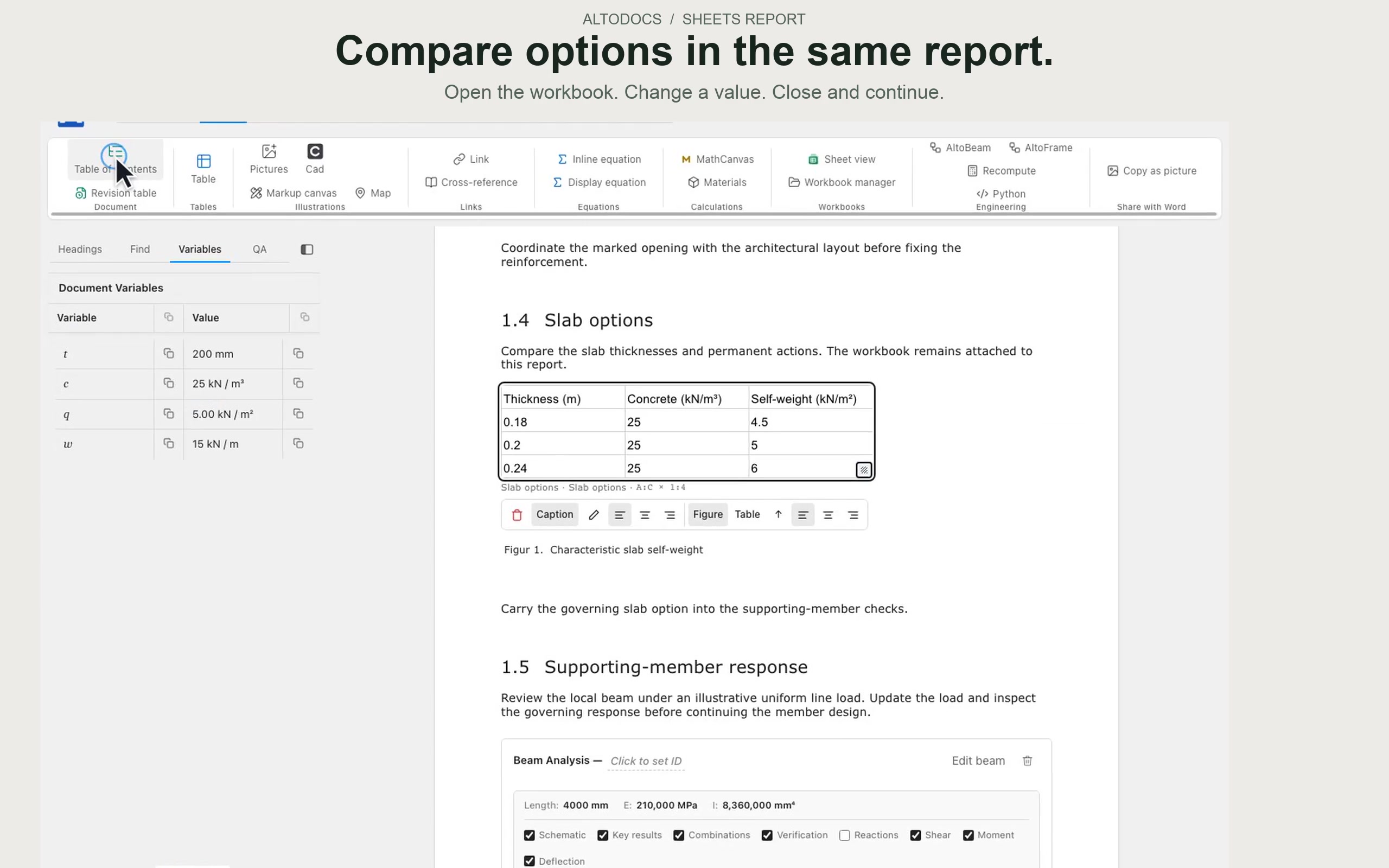
Work on your spreadsheet right in the report.

A slab-options worksheet comparing thickness and self-weight beside the report narrative
Your workbook powers a live view in your report.
Python

A notebook that lives in your report.

Embedded Python, notebook-style — script against your document’s variables and data, and keep the output beside the code that produced it.

  • Notebook-style Python
  • Script against document data
  • Outputs stay beside the code
Interactive demo · Opens here · No sign-up

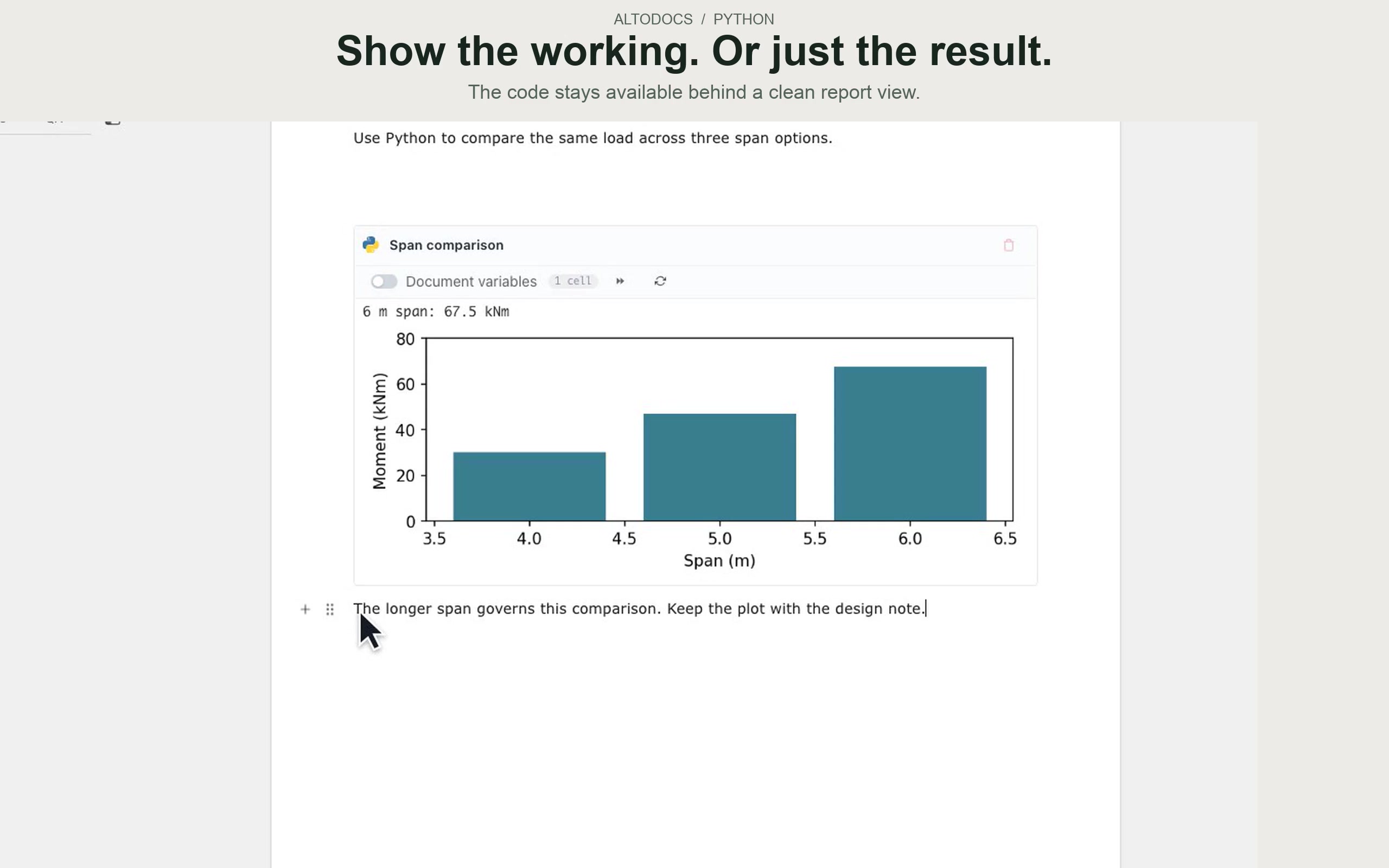
Run your code where you explain the result.

A Python span-comparison chart inside an AltoDocs report, with controls for showing code or results
Write Python. Explore your design. Keep code and results in your report.
MarkupCanvas

Turn a screenshot into an engineering figure.

Drop an image into your report, size it to fit, and give it a caption. Open MarkupCanvas to calibrate distances, draw dimensions, and point out what matters. Save the marked-up figure straight back into the document — ready to explain, review, and edit again.

  • Resize images and add figure captions
  • Calibrate and draw dimension lines
  • Save annotations, then reopen to refine them
Interactive demo · Opens here · No sign-up

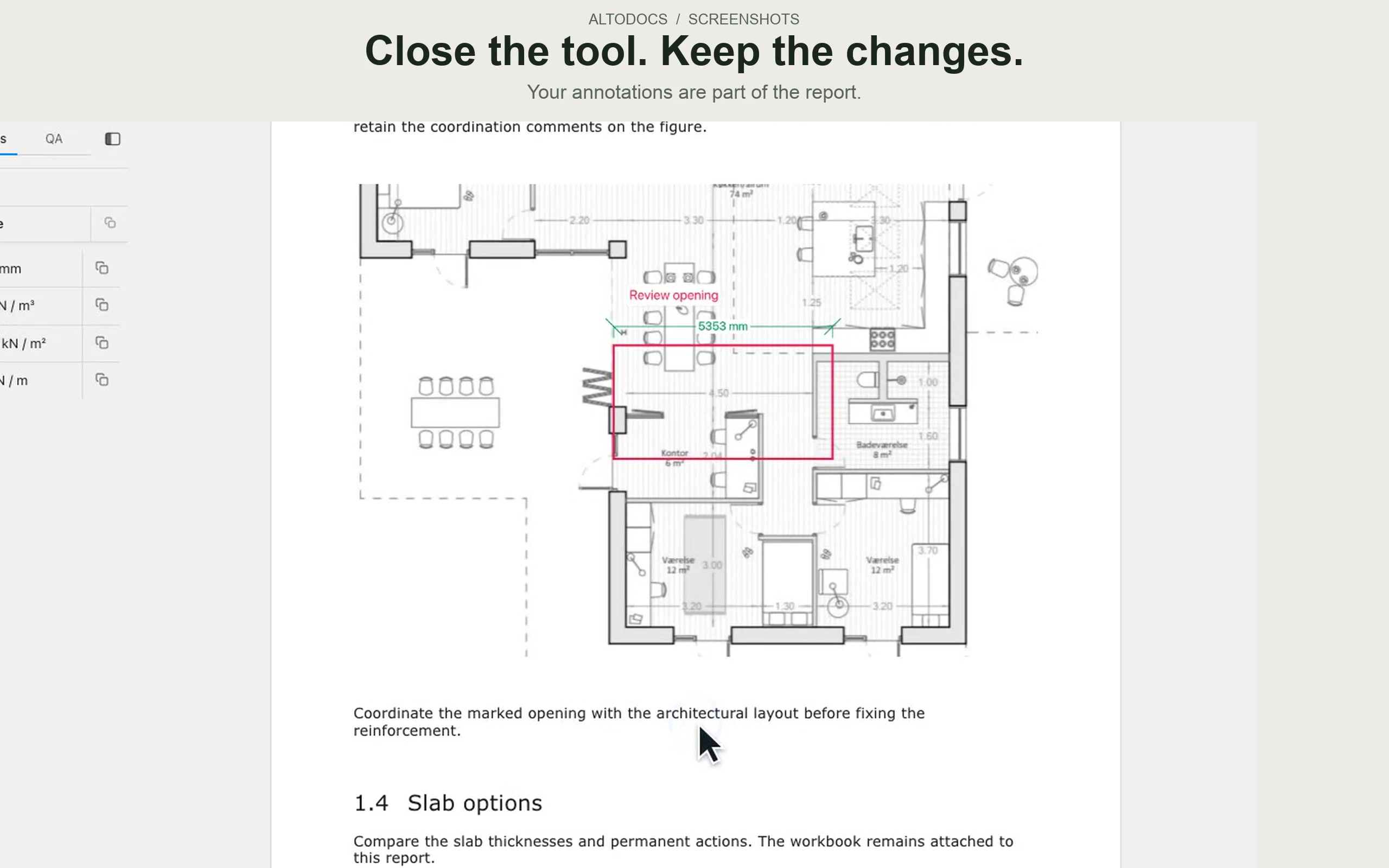
Annotate the image. Keep it in your report.

A calibrated ground-floor plan with an opening rectangle, review note and dimension line saved inside the report
Open your figure. Add dimensions. Save it back into the report.
AltoCad inside Docs

Bring your drawing into the report.

AltoCad works as a standalone drawing app. In Docs, you can also keep a linked view of a source drawing beside the design narrative. This example shows that report workflow.

  • Native 2D drafting and section profiles
  • Linked project drawings
  • Source edits update the report view
Interactive demo · Opens here · No sign-up
Explore standalone AltoCad →

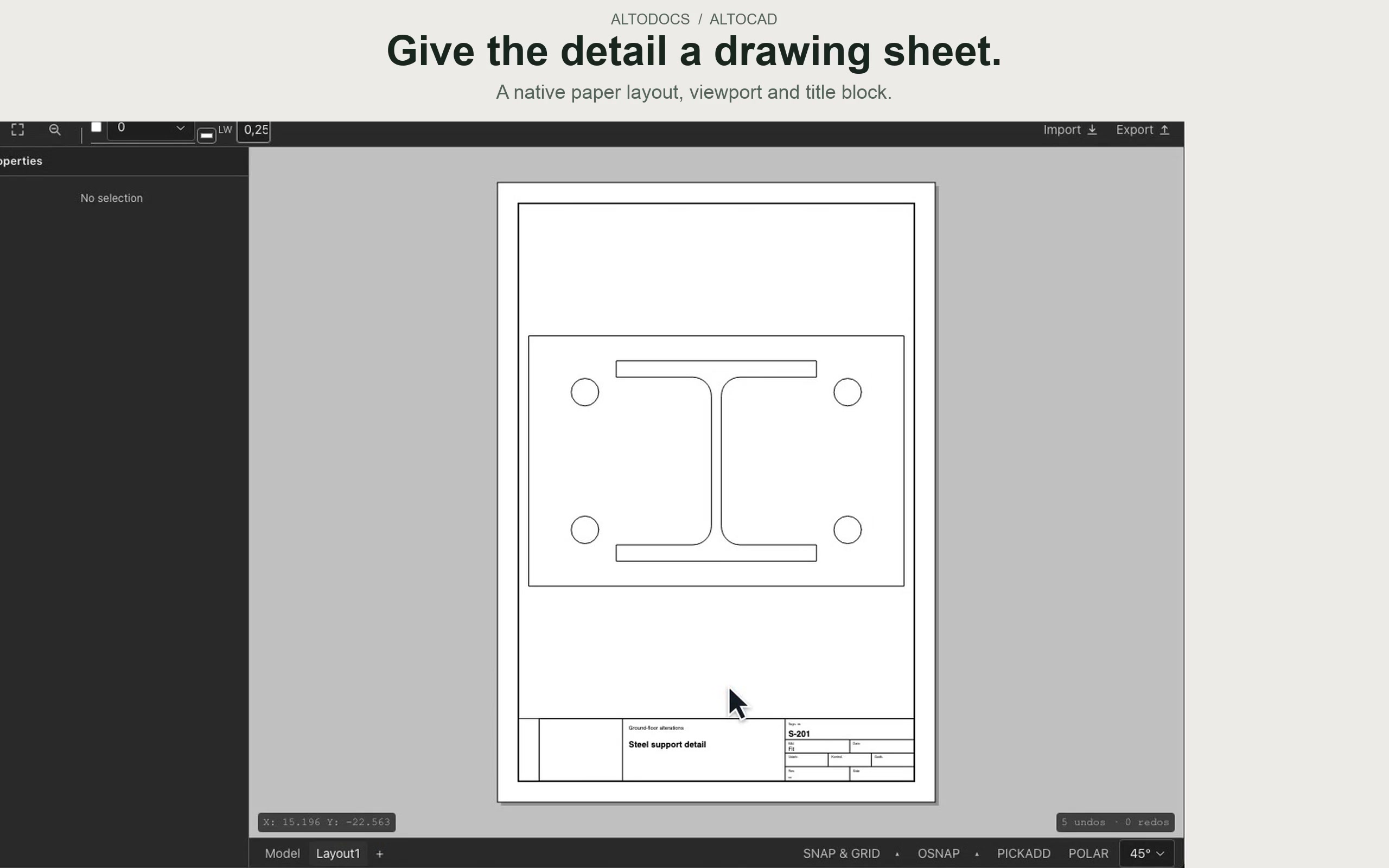
Draw the detail right in your document.

A steel support detail with a library profile and authored drawing sheet linked inside an AltoDocs report
Draw the detail. Keep it linked to your report.
Collaboration

One report, the whole team.

Everyone edits the same document at the same time — live selections, shared state, no file versions to merge. Built for engineering content, not just text.

  • Real-time co-editing
  • Live cursors and selections
  • One shared document
CollaborationWatch full size ↗

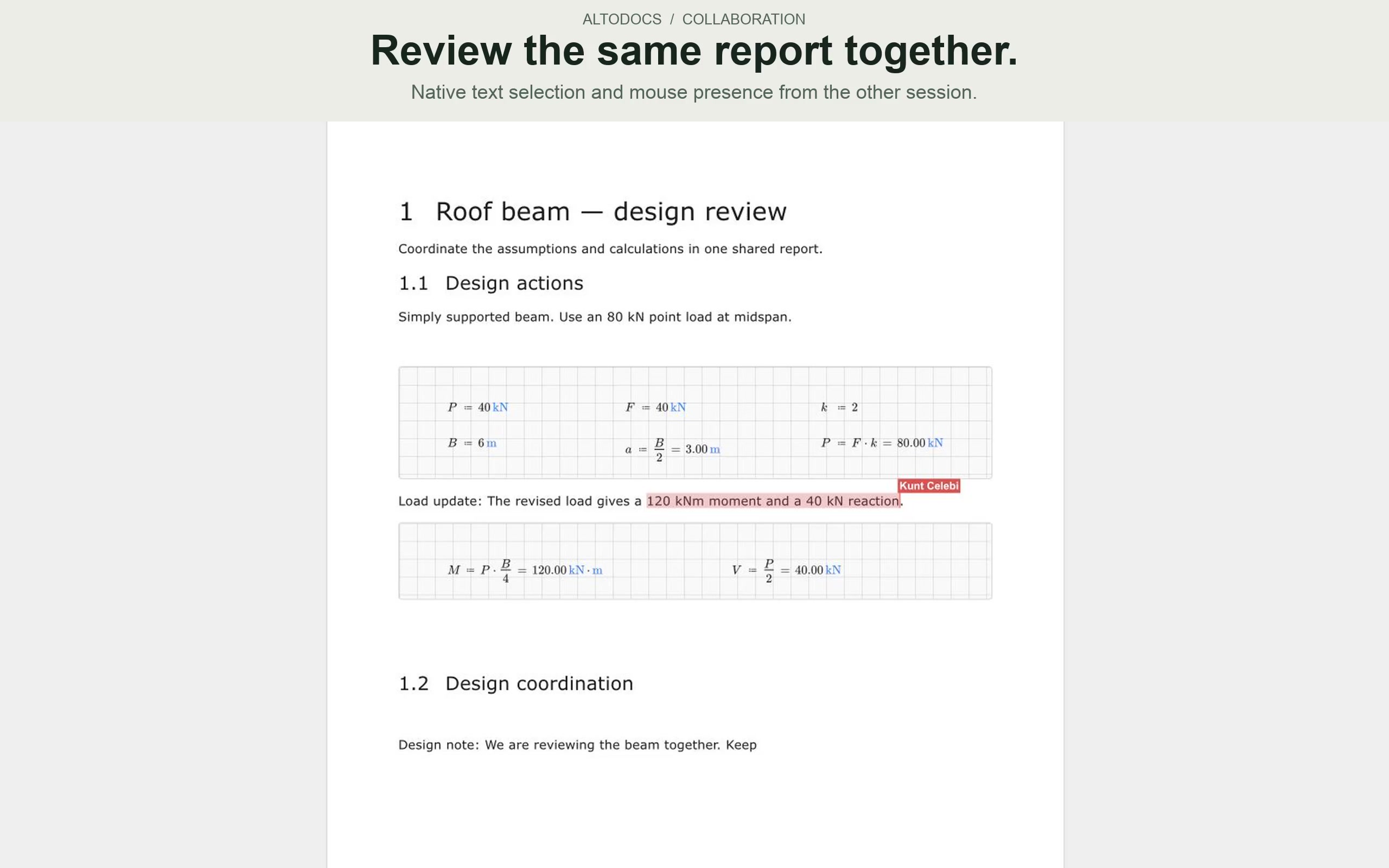
Work together in the same document.

A shared beam-design report with six input regions, connected moment and reaction results, a native remote cursor and pink text selection
Write and review together. Keep the whole report in sync.
Engineering automation inside Docs

Keep analysis and assumptions with the report.

Loads module

Wind and snow. Part of the report.

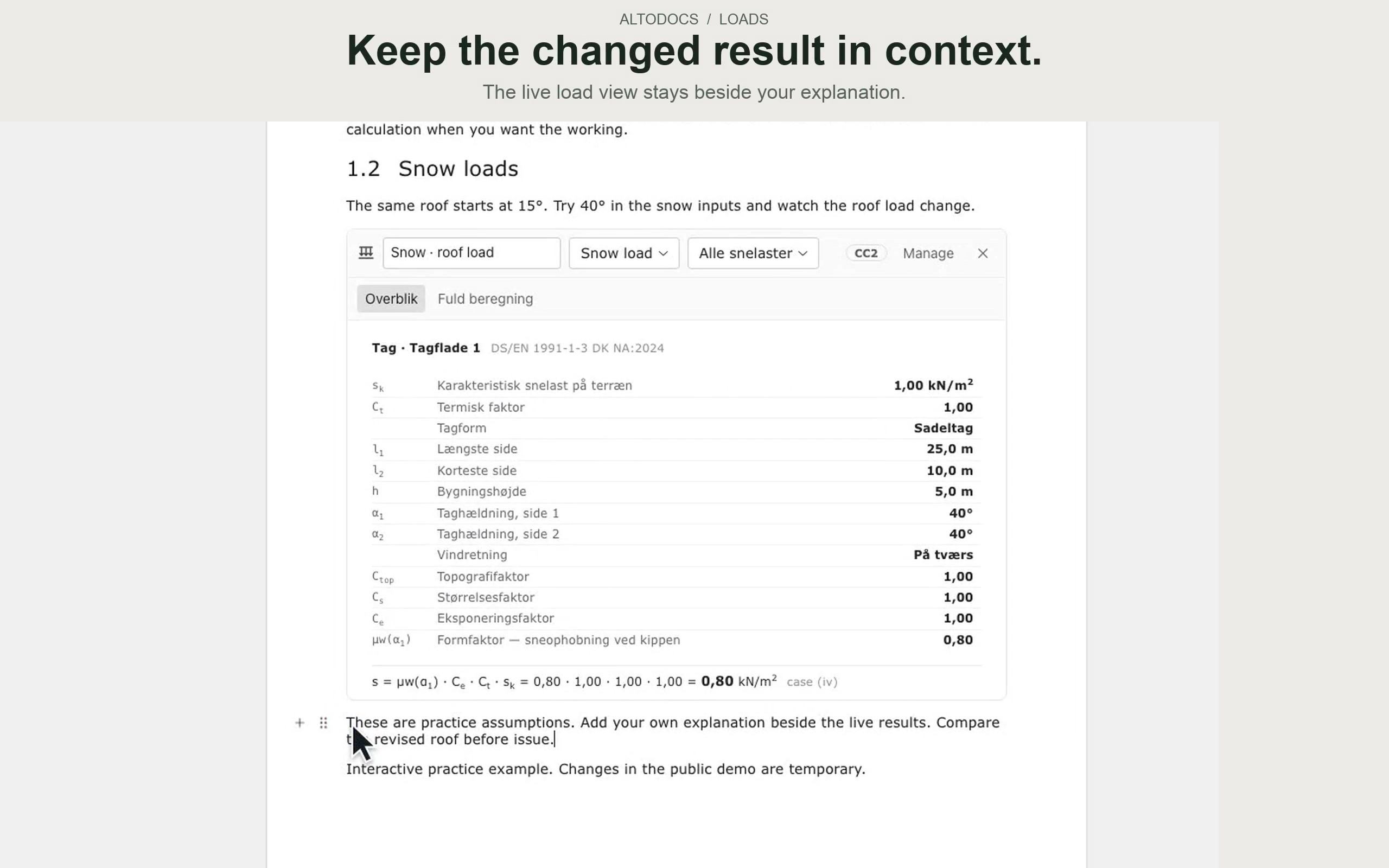
Explore roof geometry, inspect wind-pressure zones and see how the snow load changes. Keep the assumptions, diagrams and calculated results beside the design they support.

  • Wind-pressure zones and roof geometry
  • Snow-load cases and calculated results
  • Documented inside the report
Interactive demo · Opens here · No sign-up

Keep the loads and the reasoning together.

Wind and snow calculations inside the AltoDocs report editor
Explore wind and snow. Keep the calculation with the design.
AltoBeam · Member analysis

Change the load. See the beam respond.

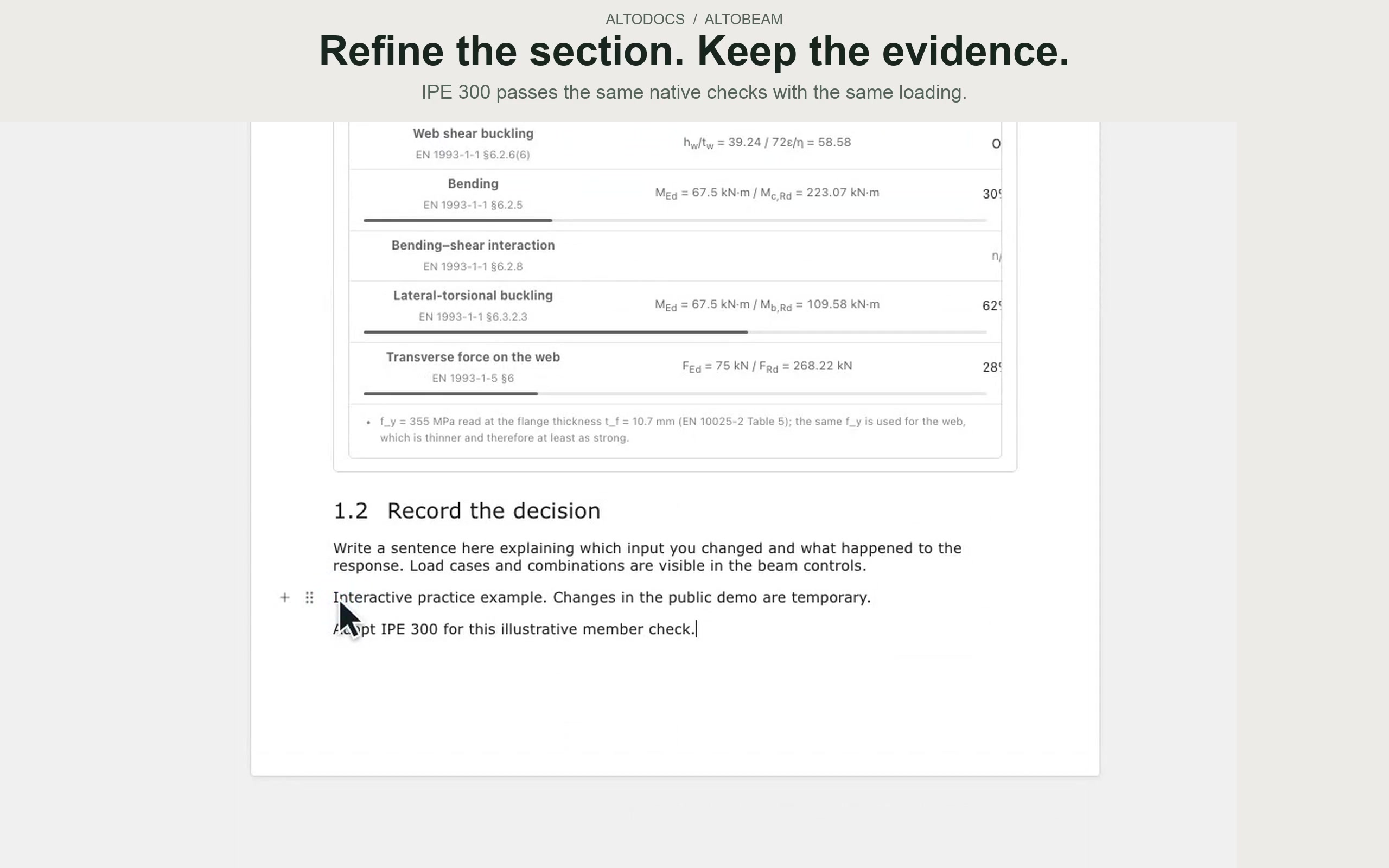
Model the span, supports, and loads in AltoBeam. Recalculate the beam, follow the bending-moment curve, and refine the steel section until its checks pass — with the results right inside your engineering report.

  • Visual beam and load setup
  • Steel section checks and iteration
  • Results kept with your report
Interactive demo · Opens here · No sign-up

Run the analysis right in your report.

A steel beam design progressing from an IPE 240 to a passing IPE 300 check inside the report
Write. Analyse. Refine your design. Keep everything in your report.
Best-practice blocks

Save it once. Insert it anywhere.

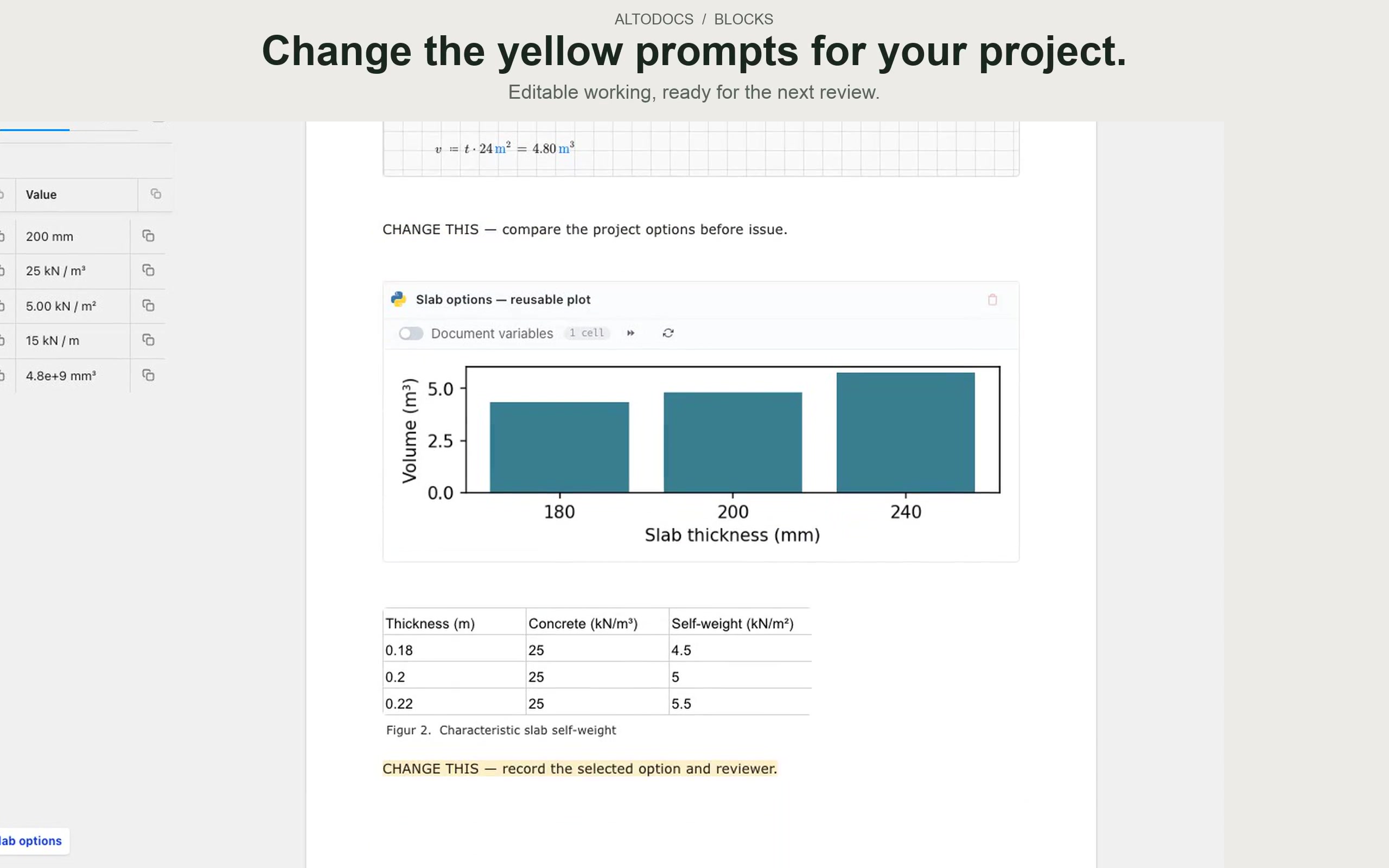
Save any section — the text, the MathCanvas calculations, a sheet, a figure — as a best-practice block, then call it into any report. Your office’s best work becomes a building block everyone can use.

  • Mix text, calculations, sheets, and figures
  • Save once, reuse in every report
  • Still editable after inserting
Interactive demo · Opens here · No sign-up
Best-practice blocksWatch full size ↗

Reuse the work. Keep shaping your report.

A reusable slab-review template containing yellow edit prompts, calculations, a Python plot and a worksheet
Your best work, ready for the next report.

Start your next report.

Join freeTry the Docs demo